
HomeSight Zoom Meeting Support
Adding Zoom Meeting integration
- The HomeSight Smart Camera support for joining a Zoom Meeting is included in the software downloaded and automatically managed / added by HomeSight operations.
Removing Zoom Meeting integration
- The integration can not be removed by the end user as it is automatically managed / added by HomeSight operations. However, by not scheduling or joining a Zoom Meeting the integration will not be used.
- If it is deemed necessary by HomeSight operations to disable or remove the integration users will be notified and any prior call history is retained with the HomeSight Account.
Usage
- Smart Camera user can participate in scheduled Zoom Meetings right on their TV using the HomeSight remote control.
- The experience is limited to joining existing meetings. It is not possible to host or schedule meetings from the Smart Camera.
- Hosting a meeting requires a separate Zoom Meeting personal or business account and accessed via the Zoom Meeting provided website or mobile app.
- Adding a Zoom Meeting to the Smart Camera
- Staff or Account contacts can schedule an event on the HomeSight Web portal
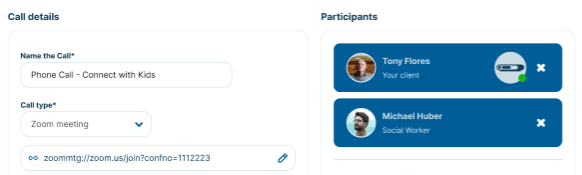
- Navigate to the Account / Schedule and "Add Call" and select "Zoom Meeting" call type to enter the Zoom Meeting URL.
- The schedule time and participants are manually added (optional) and are not automatically sync'd with the Zoom Meeting invite - this information is just what will be shown within the HomeSight schedule.
- Please note that since the HomeSight schedule is not synchronized with the Zoom Meeting invite it is important for the Staff / Account contact manage any changes such as time/date changes or canceled event to remove from the HomeSight schedule.
- Joining the scheduled Zoom Meeting
- At the scheduled time the Smart Camera will ring similar to a standard call and a notification will display on the TV
- Press "OK" or the green answer button on the Remote Control to answer and join the call
- The Zoom Meeting can also be joined by using the Remote Control to navigate from the home screen to "Schedule", select the Zoom Meeting event and click OK to "Join"
- During the Zoom Meeting
- A gallery view of up to 9 participants on-screen will be shown along with a self-view
- The Zoom Meeting may have additional participants on the call that are not actively shown on-screen
- The normal camera and microphone mute controls can be selected by the Remote Control
- Select "End Call" and press OK or press the red end call button on the Remote Control to exit the Zoom Meeting at any time.

- Screen sharing
- Any screen sharing during the Zoom Meeting will appear on the Smart Camera - during this display the participant tiles will not be shown. It is not possible to initiate any screen sharing from the Smart Camera.
- Recordings:
- The Smart Camera can join a Zoom Meeting that has a recording enabled by the host. To access the recording after the session please contact the meeting host directly.
Troubleshooting Tips
- Incorrect Zoom Meeting information
- If the URL is incorrect please "Edit Call" and edit / replace the URL used for the Zoom Meeting
- Missed the call reminder
- The Zoom Meeting can still be joined by using the Remote Control to navigate to "Schedule", select the Zoom Meeting event and click OK to "Join".
FAQ/Support